
COURTBOOKING - Creating New Bookings
The New Bookings feature allows members and administrators to schedule one-off reservations for single or multiple courts. To create a booking, navigate to the Calendar View, locate your desired court and time, and click the "+" icon on an available slot.
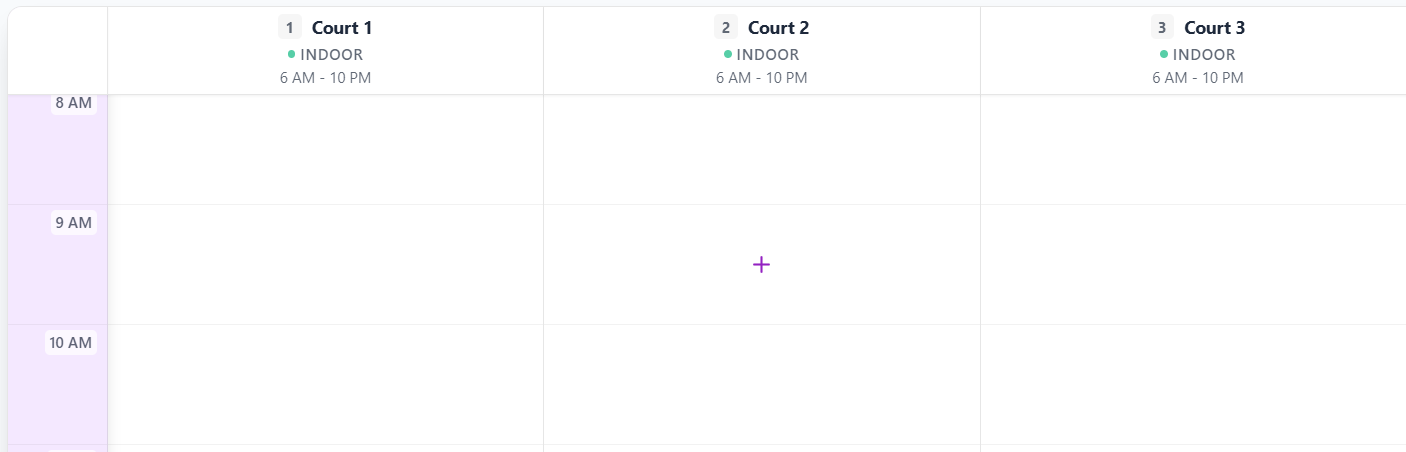
From the booking popup, you can define the event name, select an event type, add internal notes, and configure how members join the reservation using the Signup Type.
Signup Types
You can manage player registration by choosing between two distinct signup models:
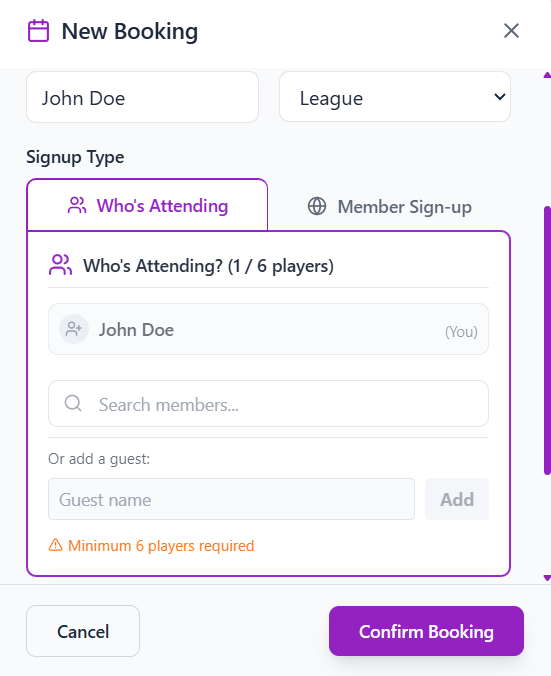
"Who’s Attending" (Private Signup): This option allows you to manually build the roster for a private group.
- The member creating the booking is automatically added to the attendee list by default.
- You can search for and add existing club members. (Tip: If a member isn't appearing in your search, you may need to refresh your roster via the Sync Users page).
- You can manually add external guests who are not registered members of your club.
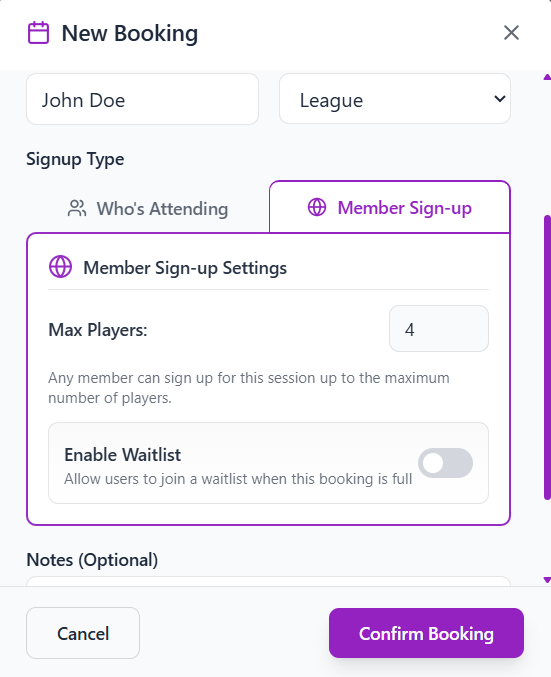
- Member Sign-up: This option opens the booking up to your entire club.
- Set a Maximum Capacity for the event, allowing club members to log in and reserve their own spots on a first-come, first-served basis.
- Enable a Waitlist to capture additional interest once the booking is full. You can cap the waitlist at a specific number or leave it blank for unlimited queueing.
Last updated: July 6th, 2026